The console is built like the consoles of the big cloud providers: a sidebar for your account, a page per server and a page per application, each with tabs.
The sidebar
| Section | What is there |
|---|---|
| Dashboard | Your servers and applications at a glance, and anything that needs attention. |
| Servers | Every server, Gen2 and classic. Click a server's name to open it; a row expands to show its applications. |
| Applications | Every site on every server, with its platform, PHP version and domain. |
| Hosting AI | AskYourStack, the AI developer that works on your servers. |
| Team | People you invited, and the accounts that invited you. |
| Profile, Addresses, Security | Your details, billing addresses, password, two-factor sign-in and active sessions. |
| Activity | Everything done in your account, by whom and when. |
| Billing | Invoices, payments and subscriptions. |
| Services, Support hours, Support | Extra help, prepaid support hours and your tickets. |
The server page
Tabs: Overview (setup, specs, recent activity and services), Graphs, Applications, Access, Databases, Domains & SSL, Backups, Security, Logs, Team, Activity and Power.
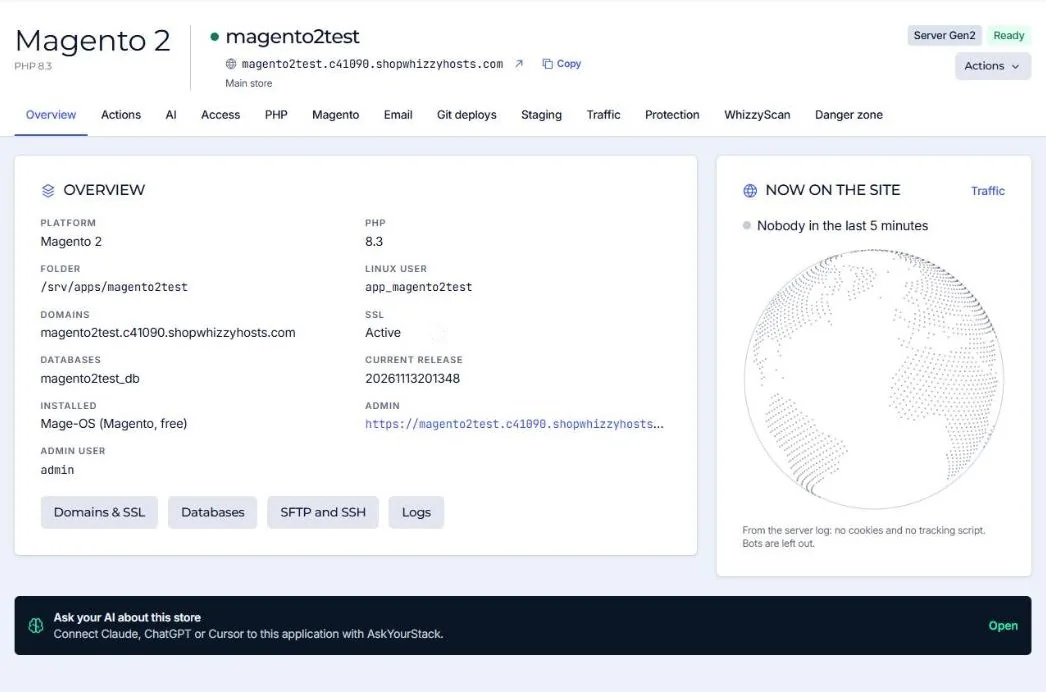
The application page
Tabs: Overview, Actions (cache flush, reindex, updates), AI, Access, PHP, the platform's own tab (for example Magento with Varnish and Redis), Email, Git deploys, Staging, Traffic, Protection, WhizzyScan and Danger zone.
Search and shortcuts
Press Ctrl + K (or Cmd + K on a Mac) anywhere to jump to a server or application by name, domain or IP address.
Jobs run in the background
Long actions (installing a CMS, restores, deploys, staging copies) run as jobs. You can leave the page: the running jobs badge in the top bar shows them, and each job keeps its full log under Activity.
Did this solve it? If not, tell us what you see and we look at your server.
Open a ticket